← BackDesign Breakdown

Revolut Business — Founder Mode

The design thinking
behind every screen.

Seven screens, each chosen because founders lose time, miss signals, or make calls on incomplete data without it.

Home Dashboard

Screen 01 — Home

Home Dashboard

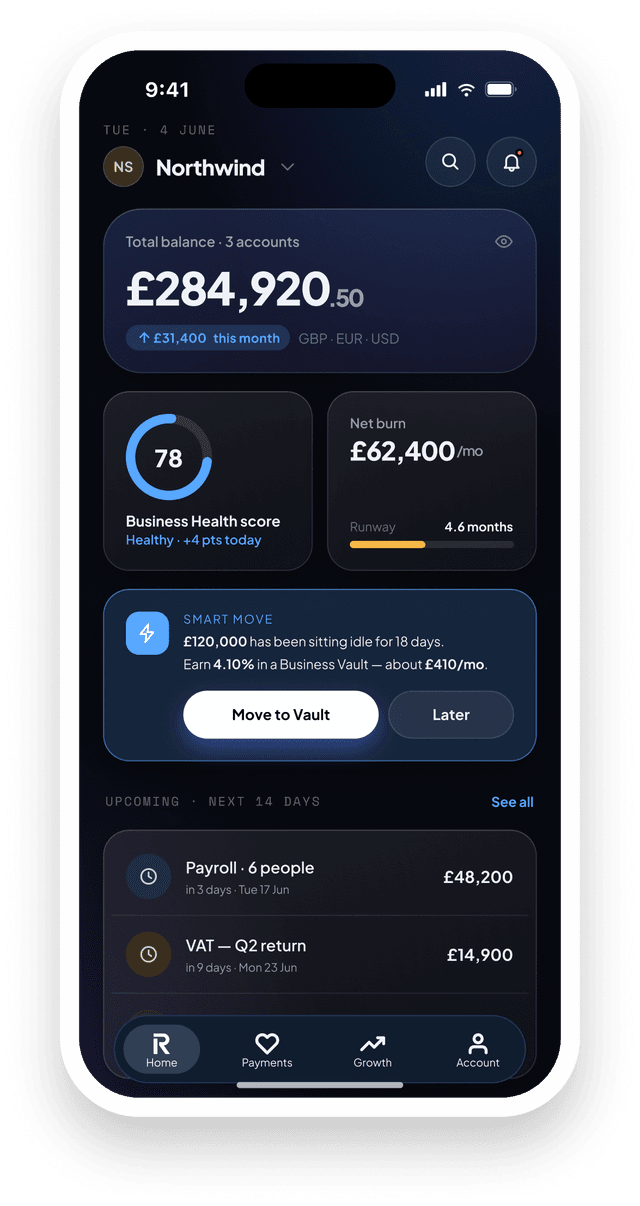
The command centre. Everything a founder needs, decided in under 10 seconds.

A Health Score surfaces three signals — runway, invoices, and card spend — in one number. A Smart Nudge surfaces one time-sensitive action per session. Layout follows an F-pattern: critical numbers top-left, quick actions right, activity below.

1

Health Score

Runway + overdue invoices + card spend in one number. Green, amber, red.

2

Smart Nudge

One action per session, ranked by financial impact.

3

F-Pattern Layout

Critical numbers top-left, quick actions right, activity below. No deliberate scanning.
Screen 02 — Payments

Smart Payments

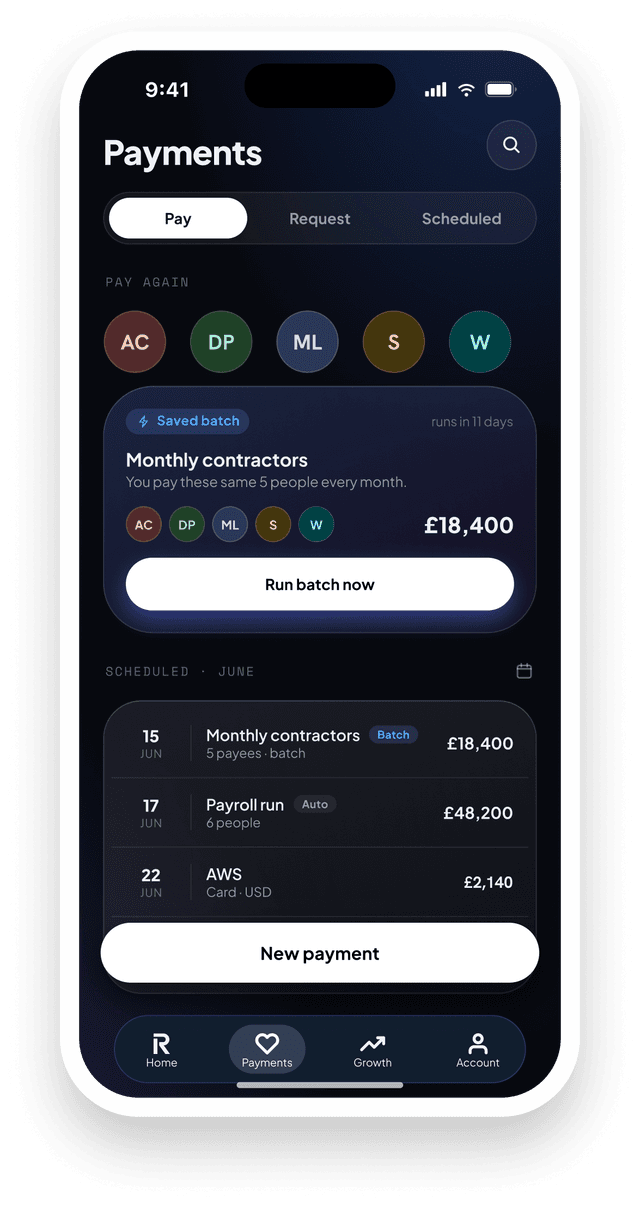
Pay multiple people at once. Queue what's coming. Never miss a recurring bill.

Built around batch and scheduled workflows. Select multiple recipients, set individual amounts, and send in one step. Queue payments up to 90 days ahead. Recurring payments have a dedicated flow — set a frequency and start date, the system handles the rest.

1

Batch Send

2–10 recipients, one submission, one record in the feed.

2

Scheduled Payments

Queue payments up to 90 days ahead, date-stamped so nothing gets missed.

3

Smart Recents

Top five recipients surface automatically — routine payments in one tap.

Smart Payments
Business Vaults

Screen 03 — Vaults

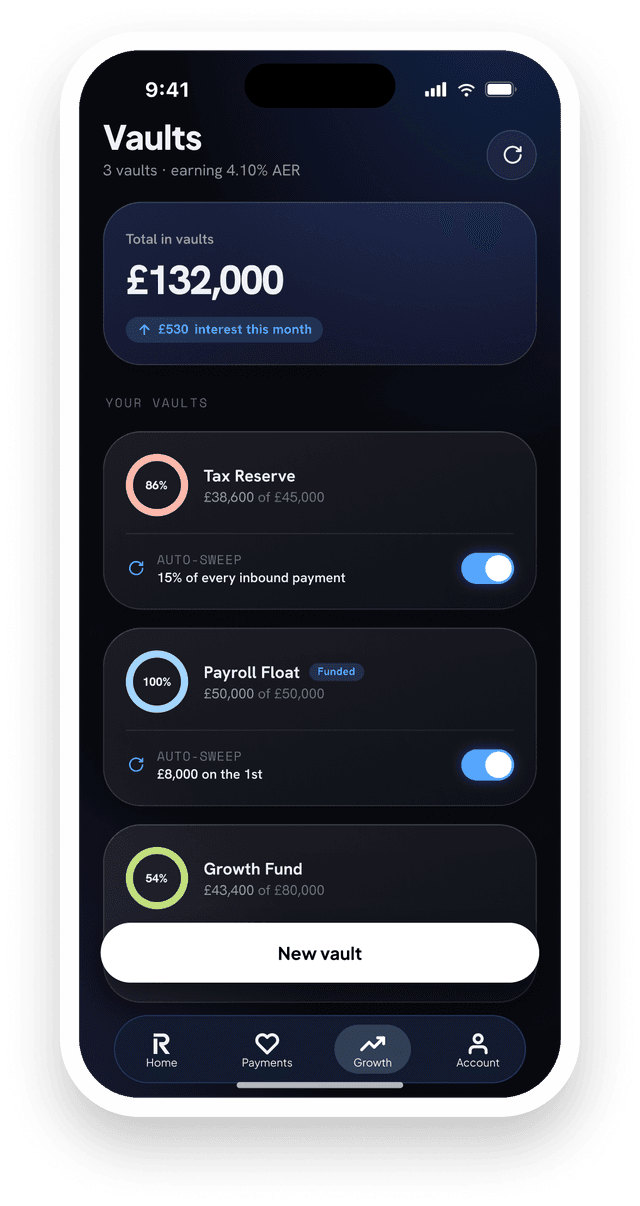
Business Vaults

Savings that work toward something, not just sit somewhere.

Each Vault has a name, a target, a deadline, and an auto-sweep rule. When the main balance exceeds a threshold, overflow moves into the right Vault automatically — saving happens without a decision.

1

Named Vaults

'Tax Reserve' is money less likely to be spent on impulse.

2

Auto-Sweep Rules

Excess balance moves into the right Vault automatically.

3

Progress Rings

Turns amber at 80% — a soft prompt, not a notification.

Screen 04 — Forecast

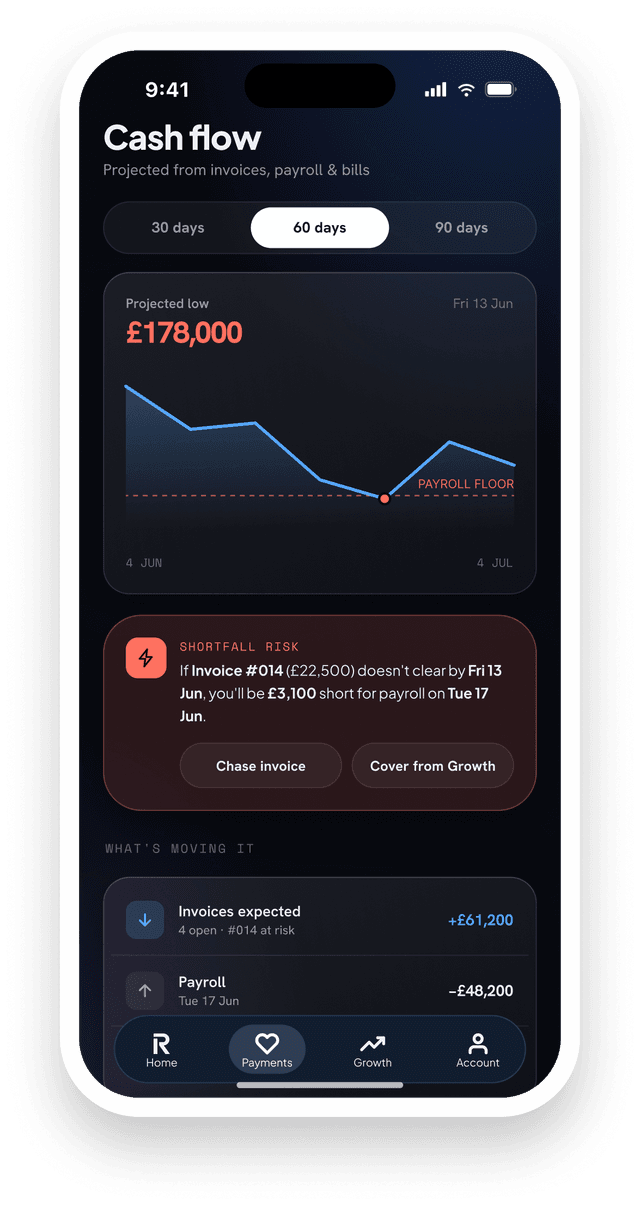
Cash Flow Forecast

See 90 days ahead. Stop making financial decisions in the dark.

Projected income and committed expenses plot across 30, 60, and 90 days. Risk events appear as named markers on the timeline — not buried in a log. Drag an expense to a different date and the balance recalculates in real time.

1

30/60/90 Horizon

Toggle between next month and end of quarter without leaving the screen.

2

Named Risk Events

'Payroll gap — 12 Aug'. Named problems get solved. Abstract spikes don't.

3

What-If Simulation

Drag an expense to a different date — the balance recalculates instantly.

Cash Flow Forecast
Team & Cards

Screen 05 — Team

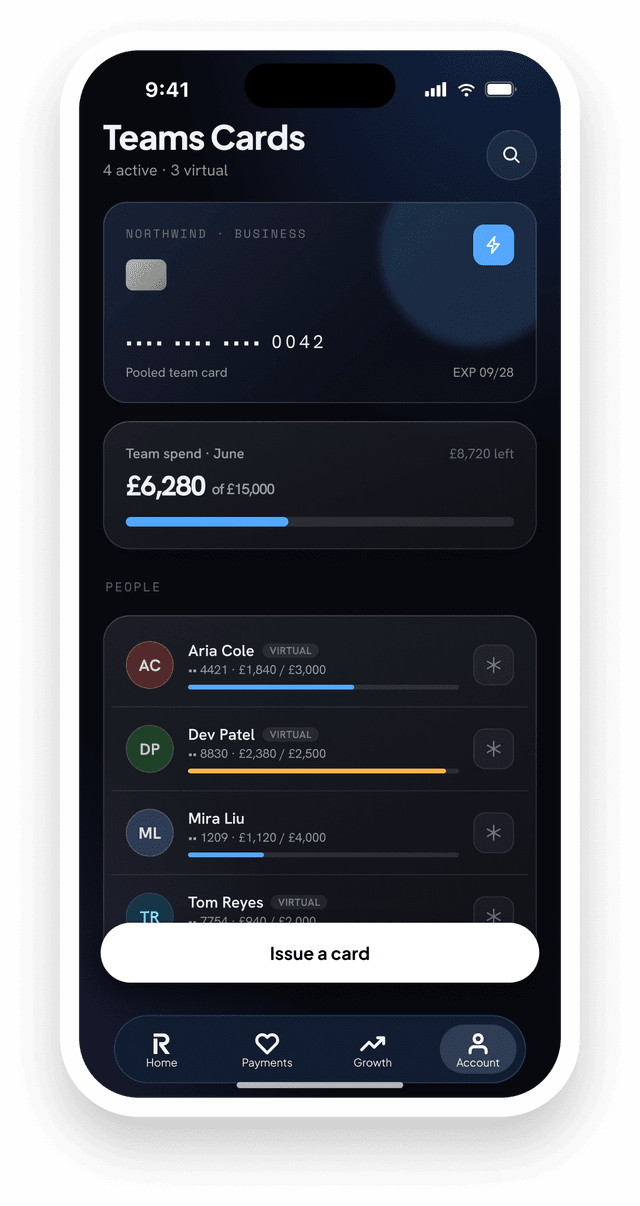
Team & Cards

Give your team spending power. Keep oversight without micromanaging.

Each card shows the cardholder, their monthly limit, current spend, and status. Cards can be frozen, adjusted, or cancelled in one tap from the overview. Spend categories are set per card so limits are implicit, not conversational.

1

Per-Card Limits

Monthly cap per cardholder, notification before the limit hits.

2

Category Controls

Lock to software, travel, or meals. No approval flow needed.

3

One-Tap Freeze

Freeze any card instantly from the overview — no navigation required.

Screen 06 — Invoices

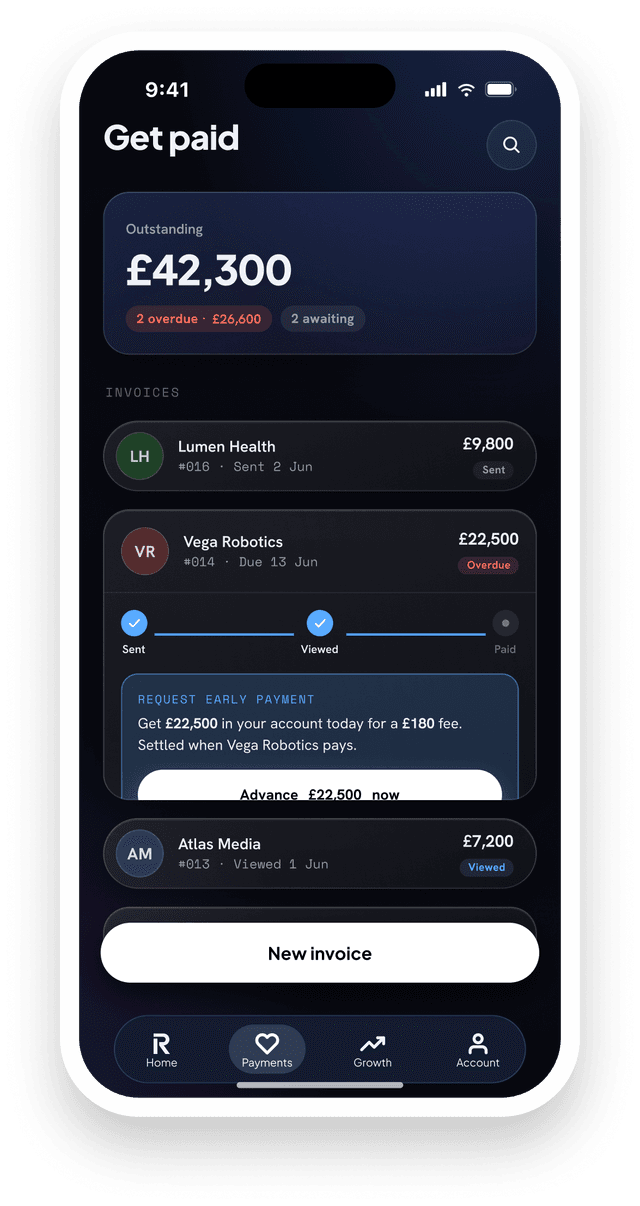
Invoices & Get Paid

Invoice natively. Know exactly what you're owed and when it arrives.

Create, send, and track from a single view. A status trail shows when an invoice was sent, opened, and paid. Overdue invoices surface at the top with a one-tap reminder. An Early Payment Offer trades a small discount for immediate settlement.

1

Status Trail

Sent → Opened → Paid. Tells you whether to follow up or wait.

2

One-Tap Reminder

One tap, formatted reminder. Escalation at 7, 14, and 30 days.

3

Early Payment Offer

1–3% off for 48-hour payment. Cash now, small trade-off.

Invoices & Get Paid
Business Setup

Screen 07 — Onboarding

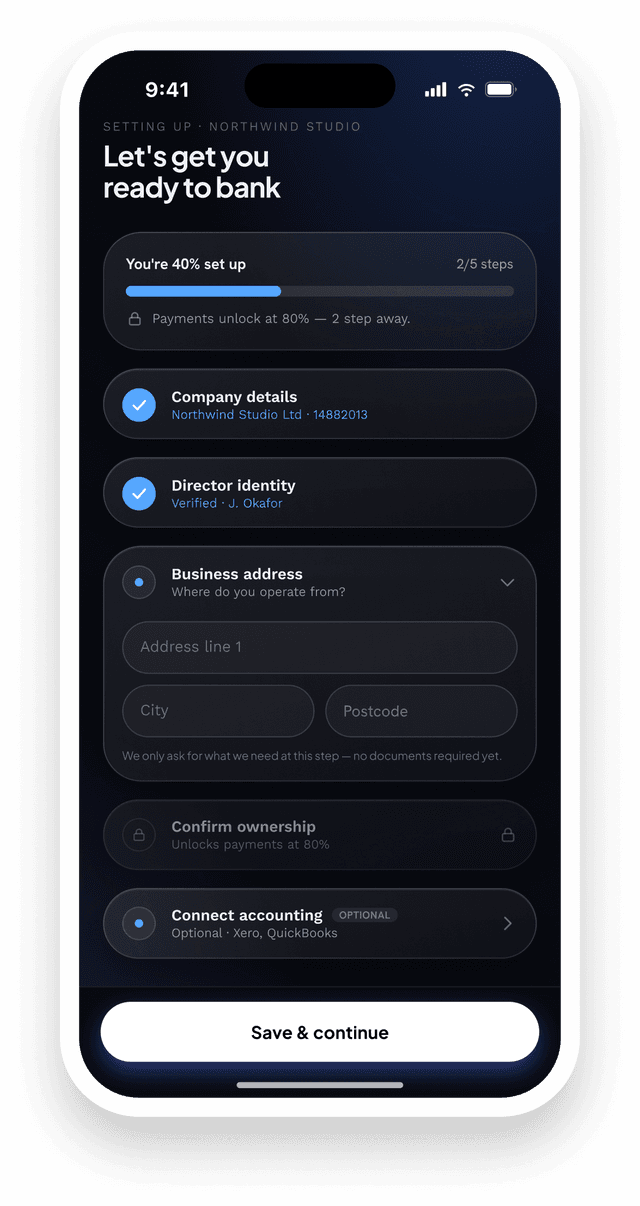
Business Setup

Start without friction. Finish without confusion.

Five named stages, each with an estimated time. You only see the current step. The system remembers where you stopped, and the final step is a real business action — not a generic 'Get Started' screen.

1

Progressive Disclosure

Five stages, one step at a time. No 20-field forms.

2

Progress Memory

Reopens exactly where you left off.

3

First Action Prompt

Setup ends with a real action — not a registration screen.